


WEEX Google Authenticator 2FA: How to Bind, Back Up and Verify It
To set up WEEX Google Authenticator 2FA, a user logs in, opens the profile menu, chooses Security and finds the Google Authenticator code option on the Security settings page.
The setup takes three steps on the Link Google Authenticator page: download the app, add the key and back it up, and enter the 6-digit code. This article explains each step, why the key must be backed up and what to do when the phone is changed or lost.
What is Google Authenticator 2FA on WEEX?
Google Authenticator is a two-factor authentication app that works similarly to SMS codes and, once linked, generates a new verification code every 30 seconds. According to the Link Google Authenticator page on WEEX, these codes can be used to strengthen security when logging in, withdrawing funds or changing account settings. On the Security settings page, the Google Authenticator code row carries the same description: it is used for security verification when logging in, withdrawing, recovering passwords, changing security settings or managing APIs.
WEEX offers both SMS and Google Authentication for two-factor verification and recommends Google Authentication for its enhanced security, according to WEEX’s account security guide. The guide also points to SIM swap attacks as a risk of SMS verification. Users who rely on a phone number alone may therefore consider linking Google Authenticator as well.
Where to find the Google Authenticator option on WEEX
The option is on the Security settings page. After logging in, the user clicks the profile icon in the top-right corner and chooses Security.
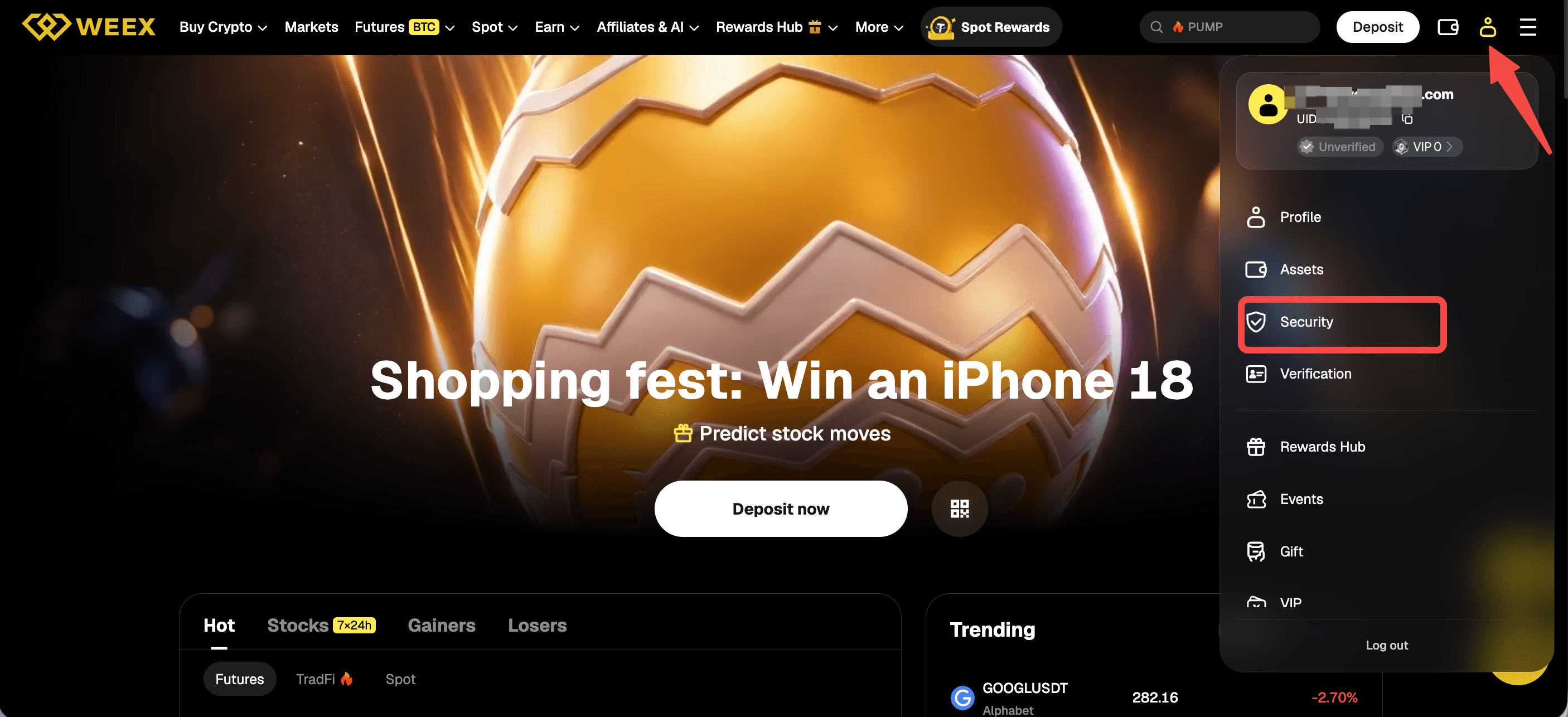
The page lists Passkey, Login password, Phone, Email, Google Authenticator code and Fund code. Before the app is linked, the Google Authenticator code row reads “Not configured” and shows a Configure button, which leads to the Link Google Authenticator page. The page’s breadcrumb reads Account, Security settings, Link Google Authenticator.
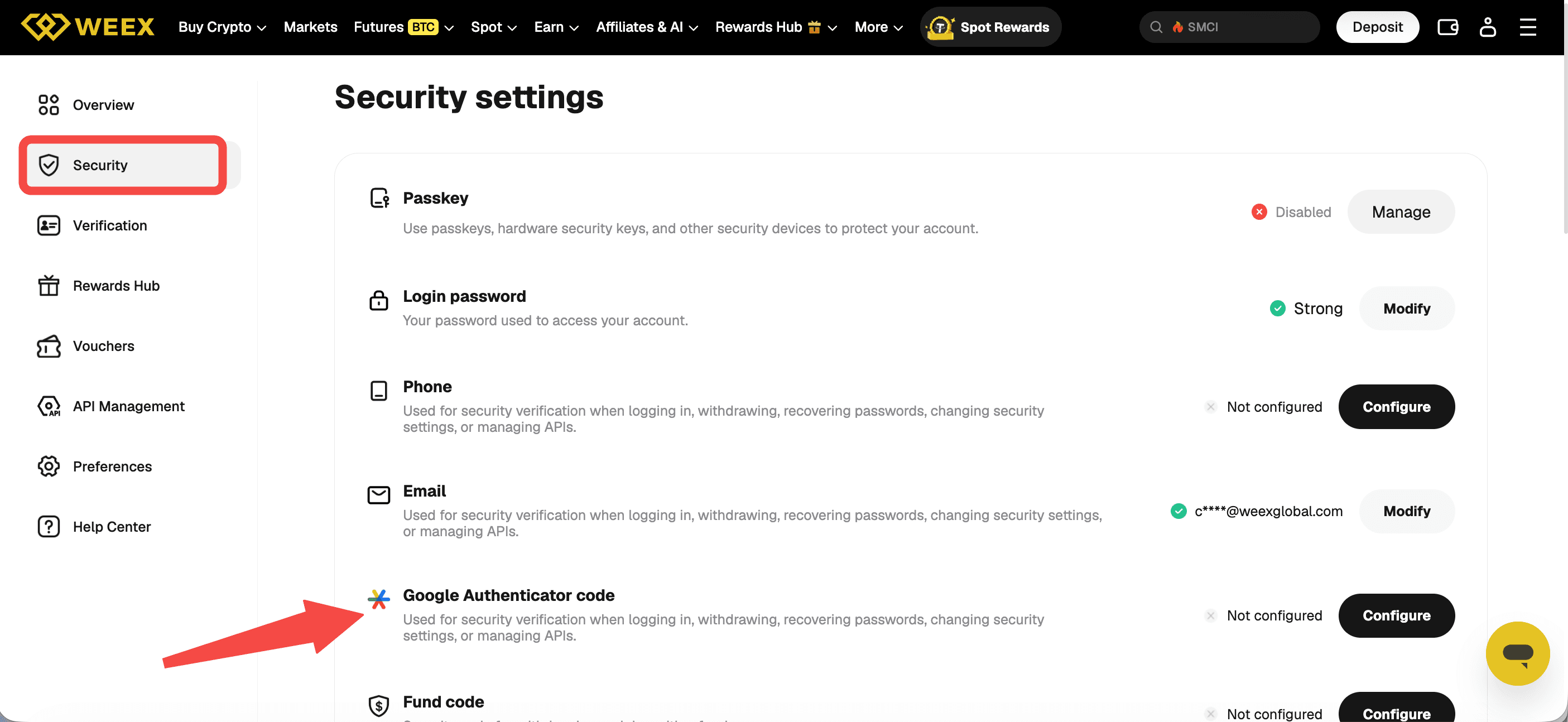
How to bind Google Authenticator on WEEX
The Link Google Authenticator page splits the process into three numbered steps.
Step 1: Download Google Authenticator. iOS users can search the App Store for “Google Authenticator.” Android users can download the app from Google Play or search for “Google Authenticator” in a mobile browser. The page also provides App Store and Google Play buttons.
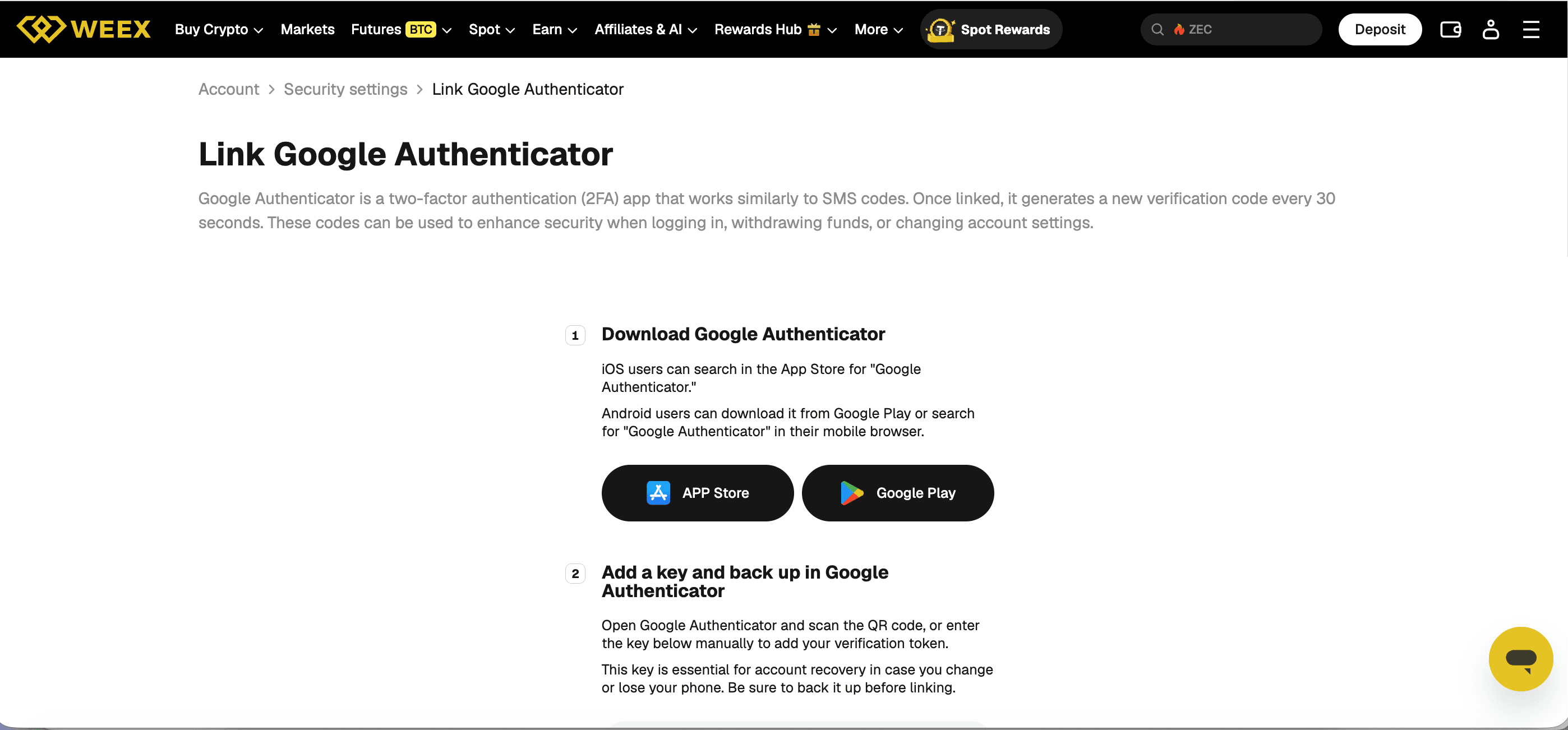
Step 2: Add a key and back up in Google Authenticator. The user opens Google Authenticator and either scans the QR code shown on the page or enters the key shown below it manually to add the verification token. A Copy key button sits next to the key. WEEX states that this key is essential for account recovery in case the phone is changed or lost, and asks users to back it up before linking.
Step 3: Enter the 6-digit Google Authenticator code. The user types the code currently displayed in the app for the WEEX account into the “Enter Google Authenticator code” field and clicks Submit.
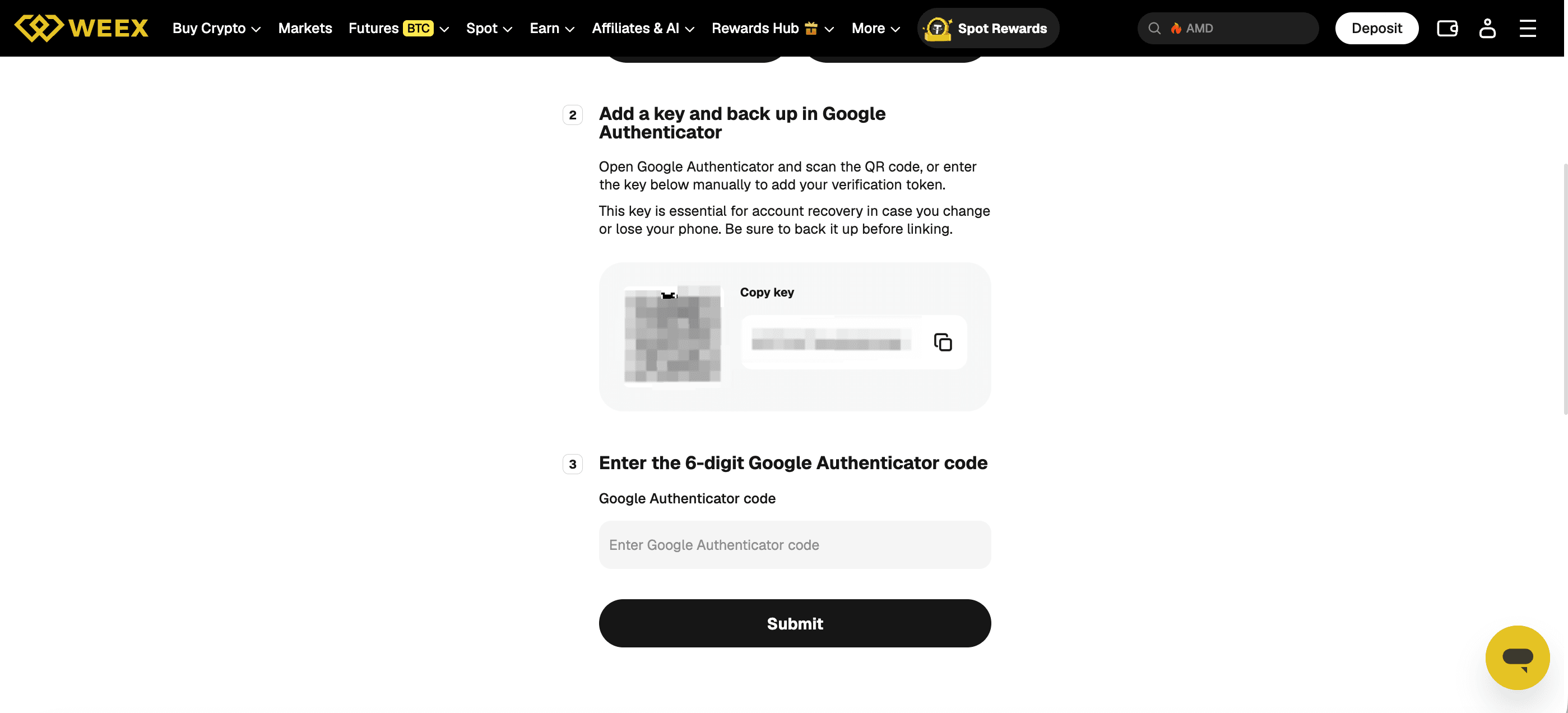
Why the backup key matters
The key shown in step 2 is what allows the same authenticator to be restored on another phone. WEEX’s page states that it is essential for account recovery when the phone is changed or lost and that users should back it up before linking. WEEX’s account security guide gives the same advice, to store the backup key safely so access can be restored after changing or losing a mobile device.
As general security practice, the key is best stored in a place separate from the phone that runs the app, and it should not be shared with anyone or posted in screenshots. Anyone who holds the key can generate the same codes as the authenticator app.
How to verify the link with the 6-digit code
Entering the current 6-digit code in step 3 confirms that the app and the WEEX account are using the same key. Because Google Authenticator generates a new code every 30 seconds, the code entered should be the one displayed in the app at the moment of submitting. A code that has already refreshed is a different code from the one that was copied a few seconds earlier.
After linking, WEEX states that the codes can be used when logging in, withdrawing funds and changing account settings. Users who rely on the authenticator for withdrawals should keep the app and the backup key available at all times.
What to do when the phone is changed or lost
Users who backed up the key can add it to Google Authenticator on the new phone, since the Link Google Authenticator page describes the key as essential for account recovery. Users who no longer have the app or the key can submit a request on WEEX’s security verification recovery page. The flow has four steps: select the unavailable security options, submit data, wait while the request is under review and receive the completed reset. WEEX states that support reviews requests within 24 hours, and that selecting two or more methods can lead to video verification, which may take longer.
Conclusion
WEEX Google Authenticator 2FA is set up from Security settings through the Google Authenticator code row and its three-step Link Google Authenticator page. The user downloads the app, adds the key by QR code or manual entry, backs the key up before linking and submits the current 6-digit code. Once linked, the codes can be used for login, withdrawals and account setting changes.
FAQ
1. How to bind Google Authenticator on WEEX?
Open Security settings from the profile icon and use the Google Authenticator code row. On the Link Google Authenticator page, download the app, add the key by QR code or manual entry, back up the key and submit the 6-digit code.
2. What is the WEEX Google Authenticator backup key?
It is the key shown beside the QR code in step 2 of the Link Google Authenticator page. WEEX states that it is essential for account recovery when the phone is changed or lost and should be backed up before linking.
3. How often does the WEEX Google Authenticator code change?
Once linked, Google Authenticator generates a new verification code every 30 seconds, according to WEEX. The code entered in step 3 should be the one currently displayed in the app.
4. What happens if the phone with WEEX Google Authenticator is lost or changed?
A backed-up key can be added to Google Authenticator on the new phone. Without the key, users can submit a request on the security verification recovery page, which states that support reviews requests within 24 hours.
5. Is Google Authenticator or SMS better for WEEX 2FA?
WEEX’s account security guide recommends Google Authentication for its enhanced security and notes that SMS verification is exposed to SIM swap attacks. WEEX offers both methods.

Gainers


